Use the personal dictionary
-
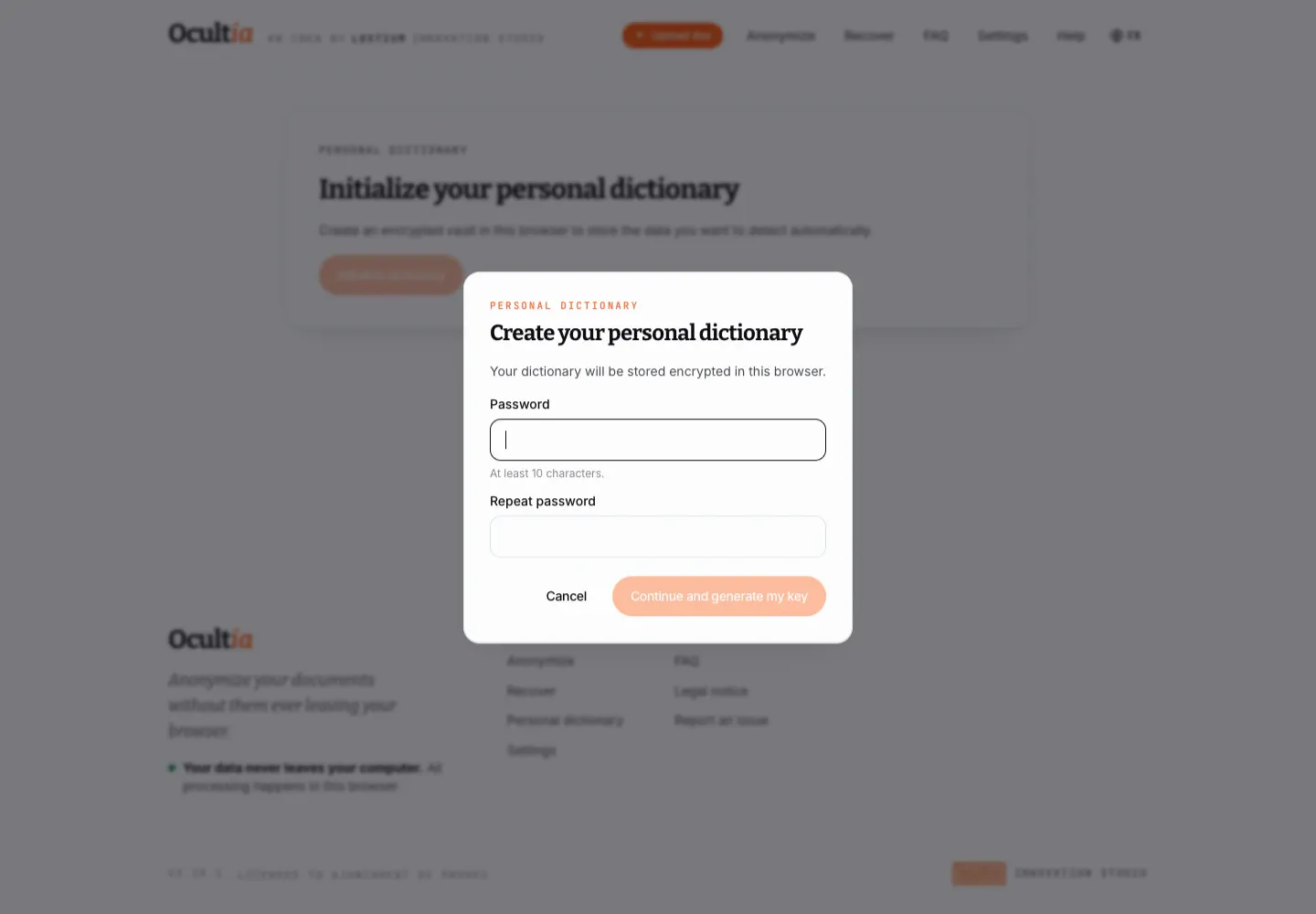
Open the Personal dictionary from Settings or when starting an analysis. Create it with a password or, if your device supports it, a compatible passkey. Store the recovery code outside the browser.
-
Organize terms into groups. Set each entry to anonymize or exclude it. If another active group marks the term for anonymization, that rule takes precedence.
Open Type to choose the label that will replace the data. With the list open, type the first few letters of the type you want.
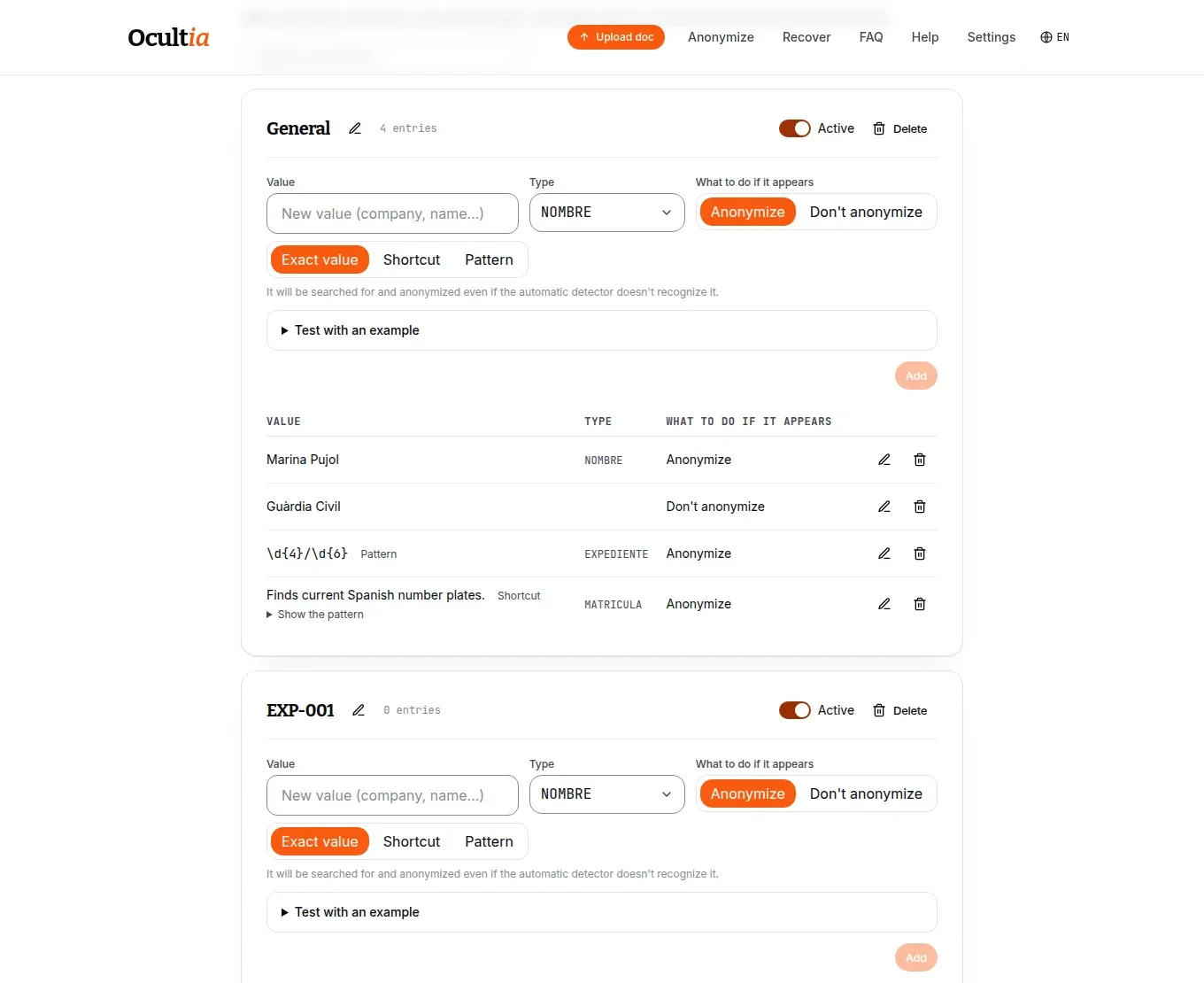
If what you want to protect follows a format (a case number, a policy, a licence plate), choose Pattern instead of Exact value and write a regular expression, for example
\d{4}/\d{6}. The rule finds whole words within a single line, and each matching text gets its own token. Tick Ignore case if case should not matter. A dictionary accepts up to 50 pattern rules.If you would rather not write the expression, choose Shortcut and find the one you need by typing in the dropdown: words that start with, end with or contain some text, Like this example (paste a code and it finds the ones with the same shape), prefix and number, dates, number plates, amounts in euros or cadastral references. Shortcuts for a specific kind of data (number plate, date, amount, cadastral reference or Social Security number) carry a label with their type, for example
MATRICULA, and put it in Type when you choose them; you can change it. A sentence tells you what it will find, and Show the pattern lets you see it or edit it by hand. In the list, the rule shows that sentence and a Shortcut label, and editing it takes you back to the shortcut’s fields; if you edit it as a pattern, it becomes a pattern rule.If your browser includes Chrome’s AI (Gemini Nano), Suggest a rule with AI writes the rule for you from a description and a few examples. The suggestion goes into the add fields so you can review it, try it with Test with an example and save it. The AI works on your device and does not save or send what you write.
-
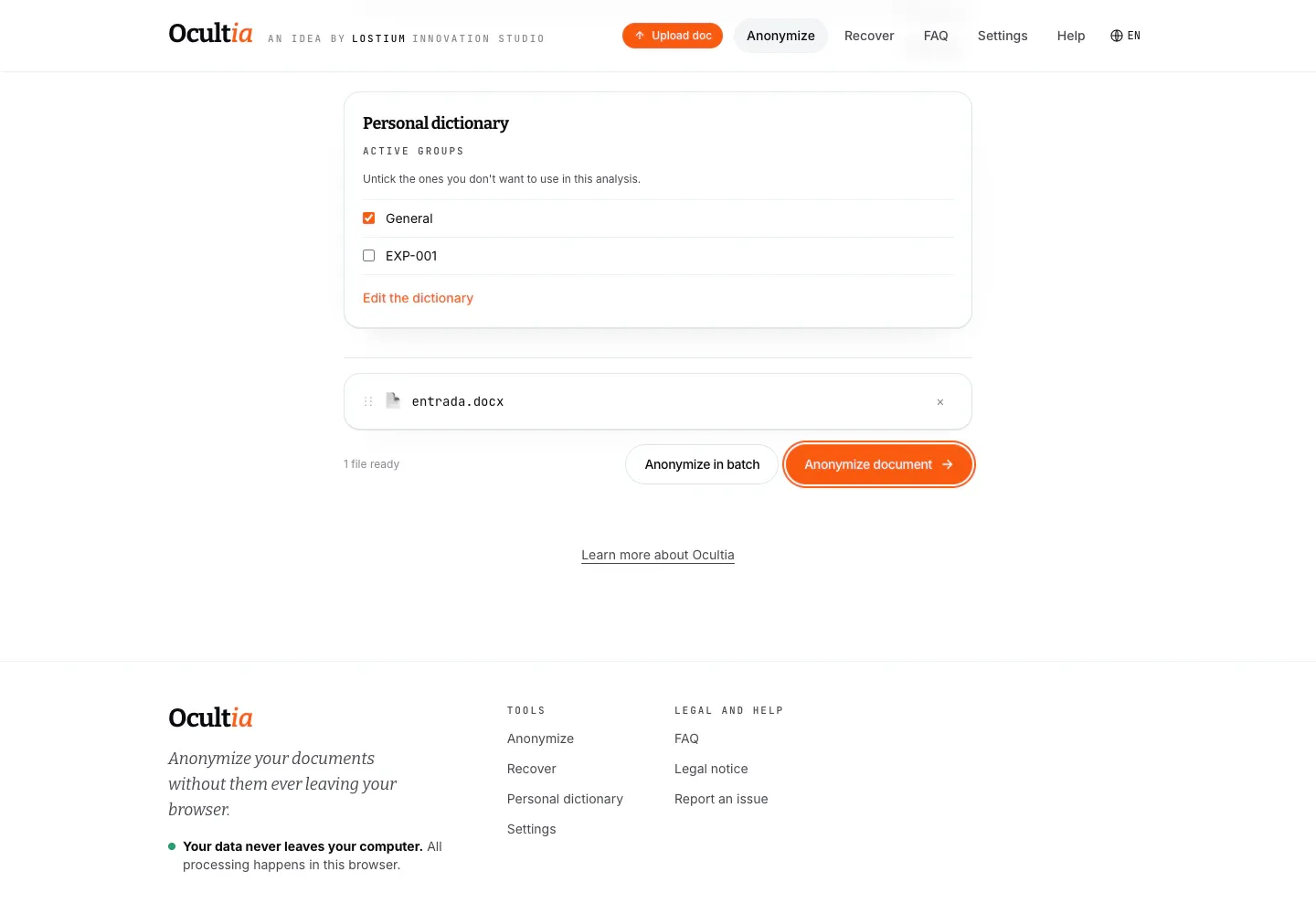
Before analyzing a document, unlock the dictionary and choose which groups to use. You can also save a rule for future analyses from a detection.
-
Under export and import, transfer one group or the whole dictionary as JSON. Use an encrypted copy if it contains sensitive data. To move it to another browser, import the file and check the groups.
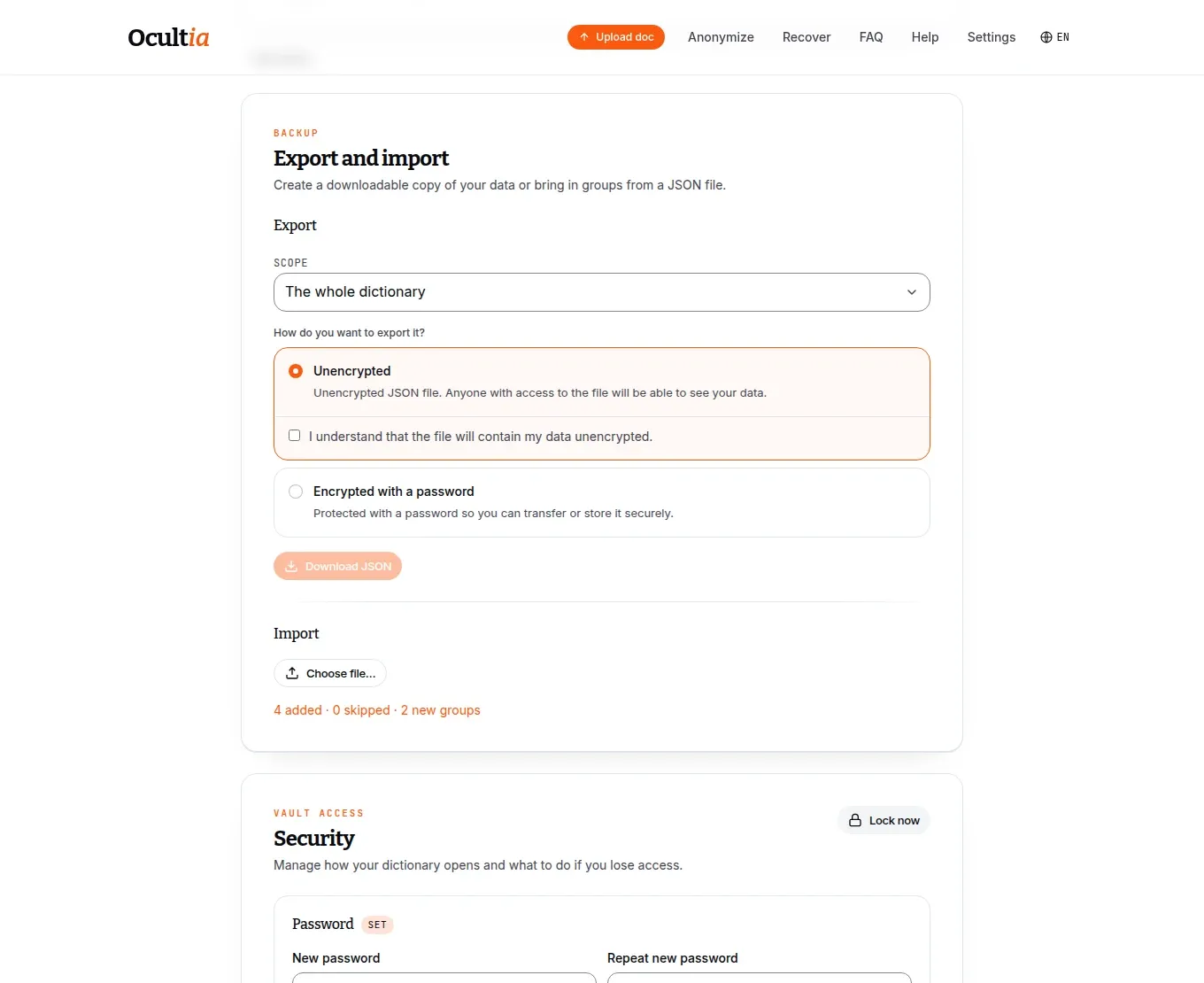
The dictionary is stored encrypted in the current browser. The recovery code can reopen it if you lose your access method. Export anything you want to keep before resetting the dictionary or clearing browser data.
Change the dictionary encryption key
The encryption key (EK or DEK) protects your saved groups and terms. Changing it encrypts the current dictionary again with a new key and keeps its contents intact. The password you keep stays the same, and Ocultia generates a new recovery key.
- Go to Settings → Personal dictionary → Open dictionary. If it is locked, select Unlock and use one of your access methods.
- In Security, find Encryption key and select Change the encryption key. If you see Confirm it is you, use one of the dictionary’s access methods.
- If the dictionary has a password, enter it under Your current password. Any passkeys are selected by default under Passkeys that keep opening your dictionary. Clear the selection for any you want to remove. If you have no password, keep at least one passkey.
- Select Change the key and respond to the browser prompt for each passkey you kept. If you cancel a prompt or the dialog reports that the change failed, the dictionary keeps the previous encryption key.
- Save the new recovery key outside the browser and replace the old one, which can no longer open the current dictionary. Select I have saved it somewhere safe, then Done.
If you see a notice after revoking a credential
The notice appears in Security after you remove a password or passkey, change an existing password, or regenerate the recovery key. The old credential can no longer open the current dictionary in this browser. If someone saved an old copy of the dictionary and has that credential, they may still be able to read that copy.
- If you suspect someone obtained a copy and the old credential, select Change the encryption key and follow the steps above. The new key protects what you save from then on. The contents of the old copy remain accessible with the old credential.
- To defer the change, select Not now. This dismisses the notice. The credential stays revoked, and you can change the key later from Security.