Getting started with Ocultia
1. Open Ocultia
Section titled “1. Open Ocultia”Open Ocultia and find Upload your document. You can change the language in the header.
2. Upload your document and choose an output
Section titled “2. Upload your document and choose an output”-
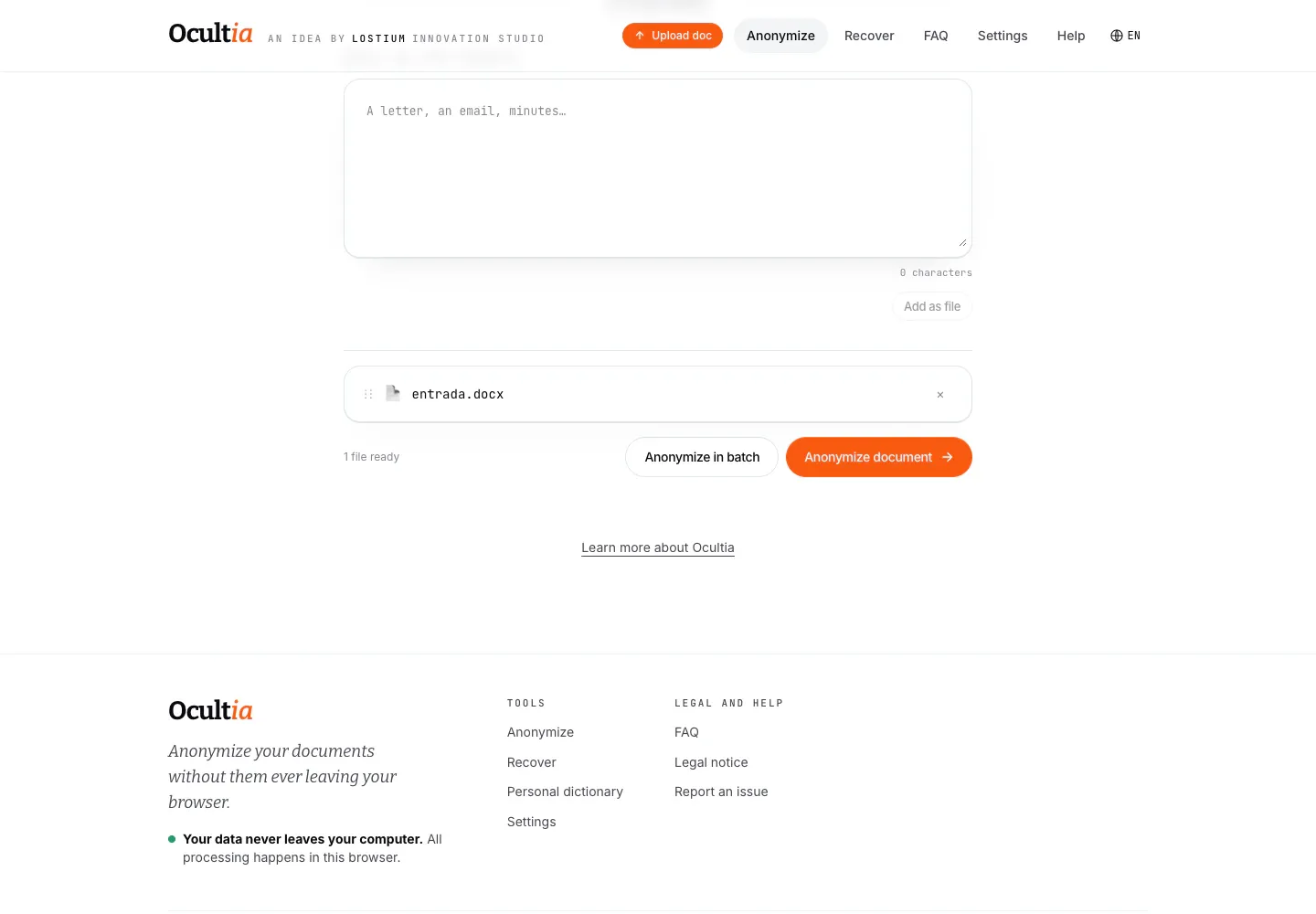
Drag the file into the upload area or select it from the file browser.
-
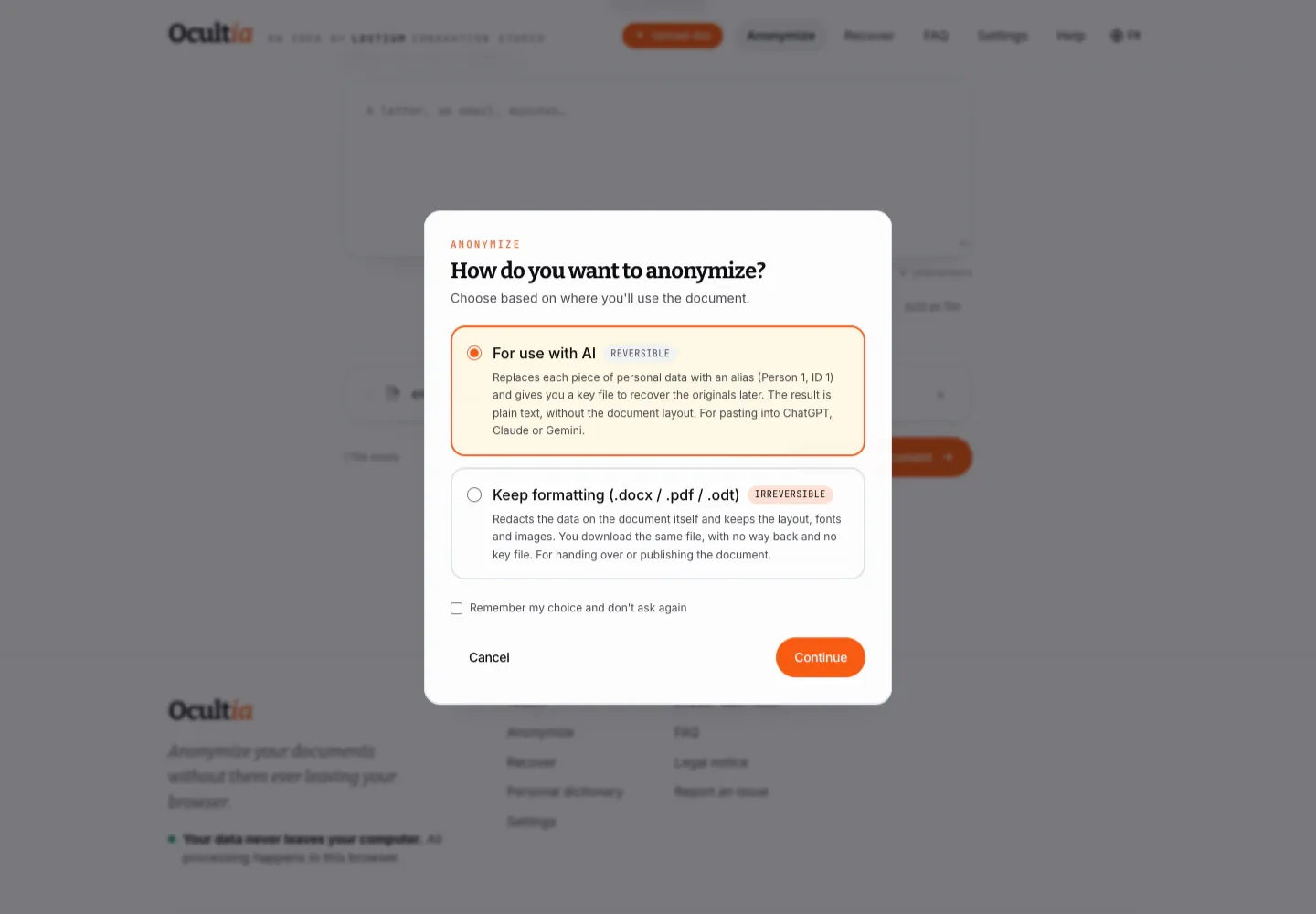
Select Anonymize document. When asked how to anonymize the document, choose Keep formatting (.docx / .pdf / .odt) to create a redacted copy. This option works with one Word, PDF or LibreOffice document at a time.
-
Continue and wait for the review screen.
If you need text for an AI tool, choose For use with AI. The exported text uses aliases in place of the original data. The key file can restore that data and should be stored somewhere safe. Share only the reviewed output.
3. Review and correct the detections
Section titled “3. Review and correct the detections”- Go through every page and compare the document with the matches shown by Ocultia. Check names, ID numbers, addresses, phone numbers and any other information that needs to be redacted. Review headers, footers, tables and images as well.
- To keep a match visible, click its highlight or find it in the list and clear its selection.
- To add a missed item, select the text in the viewer and add it to the review. In the PDF viewer, you can also drag across the page to mark an area. In text mode, you can use the manual anonymization panel.
- Check the marks again. If sensitive information remains visible and you cannot redact it in Ocultia, stop before exporting and ask IT for guidance.
Automatic detection is a first pass. Review the document even if Ocultia reports that it found no matches.
4. Export and check the copy
Section titled “4. Export and check the copy”- Select the export button and confirm the download when prompted. The copy keeps the document format and applies the marks you reviewed. The original file stays where it was.
- Open the downloaded file and check it before processing, sending or publishing it. Confirm that the required content is still readable and that the information you meant to redact is gone.
- If you need to make a correction, return to the original or the review screen if it is still open, then export a new copy. Redaction in the exported copy is irreversible.
What happens if the server goes down?
Section titled “What happens if the server goes down?”On the public website, if you previously opened the homepage in your language and your browser has cached the app, you can return to that same address. We verified that at /es/ you can analyze text and download the anonymized Markdown while the web server is unreachable. Bookmark the address for your language. The root address ocultia.com needs to redirect you and may show a connection error. A first visit also requires the website to be available.
5. Report a problem
Section titled “5. Report a problem”Support email: info@ocultia.com
Include the date and time, browser, file format, the step where the problem occurred and the error message. Remove personal information from screenshots before attaching them. If you need to reproduce the issue, use a test file with fictional data and follow the support team’s instructions.