Redact PDF, Word, and LibreOffice files
-
Upload a
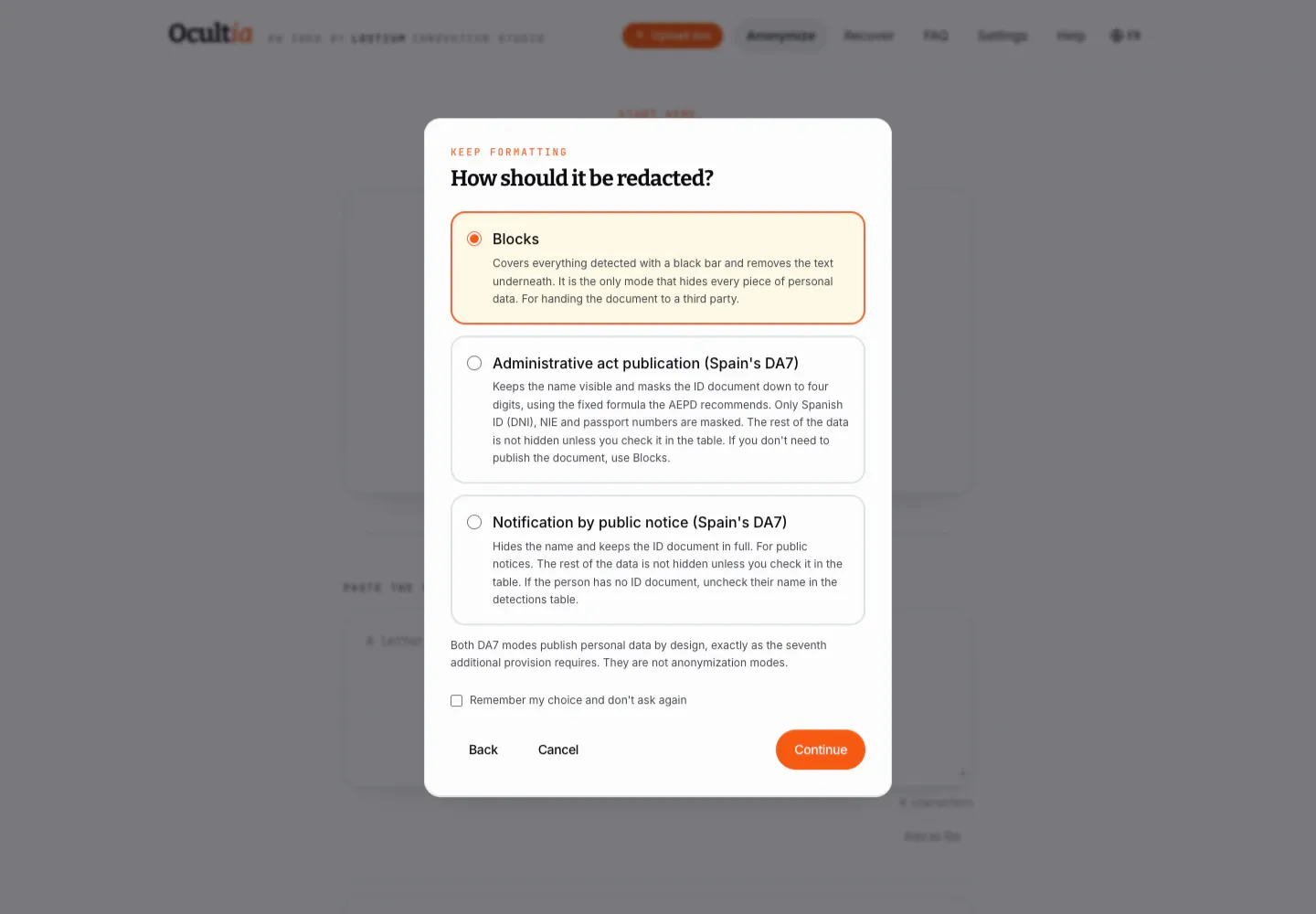
.pdf,.docx, or.odtfile. Select Anonymize document and choose Keep formatting. -
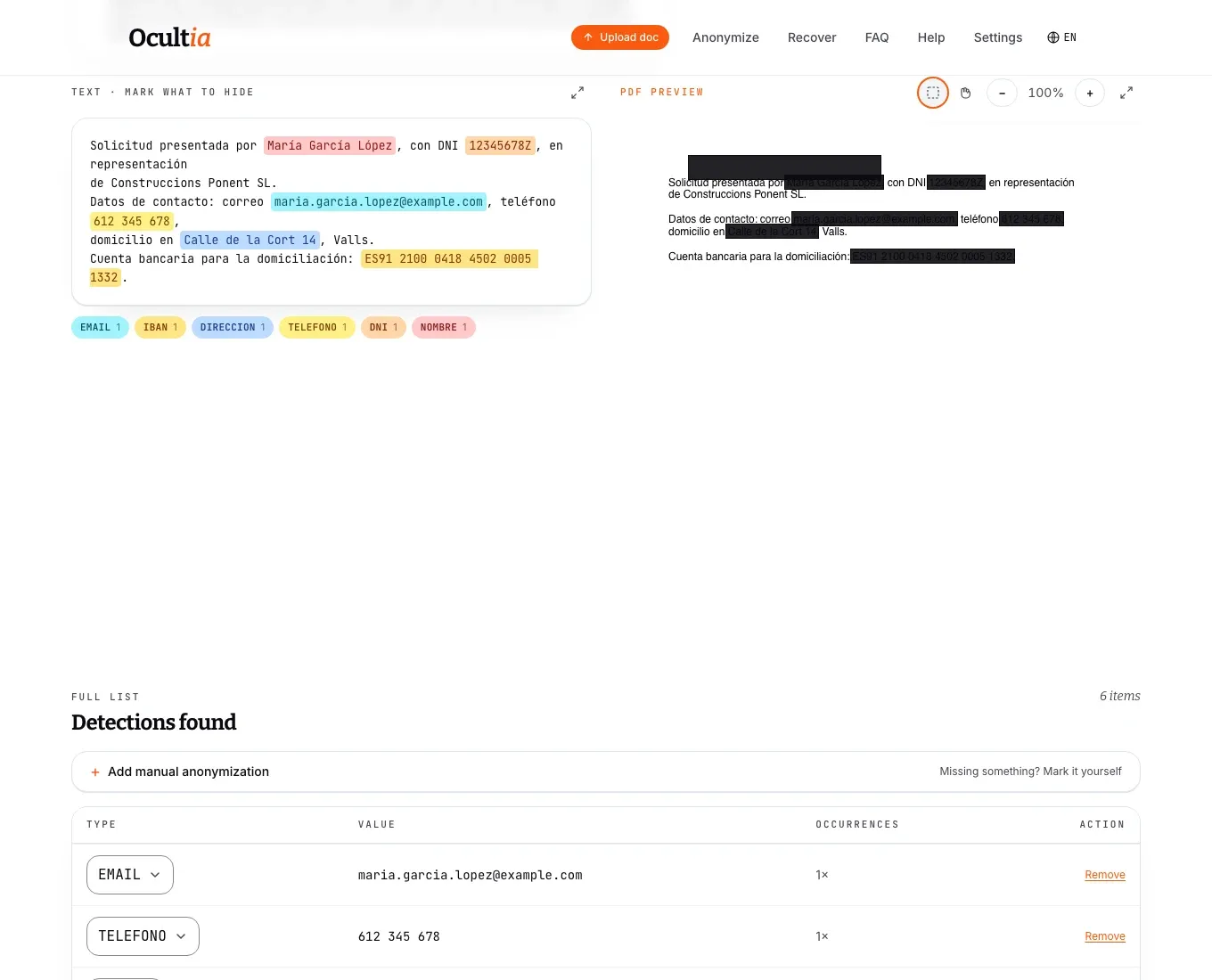
Check the viewer and the matches table to see what will be redacted. Clear any matches that should stay visible and add items that were missed. In a PDF you can mark areas directly on the page.
In a PDF, check the preview after marking an area on the page.
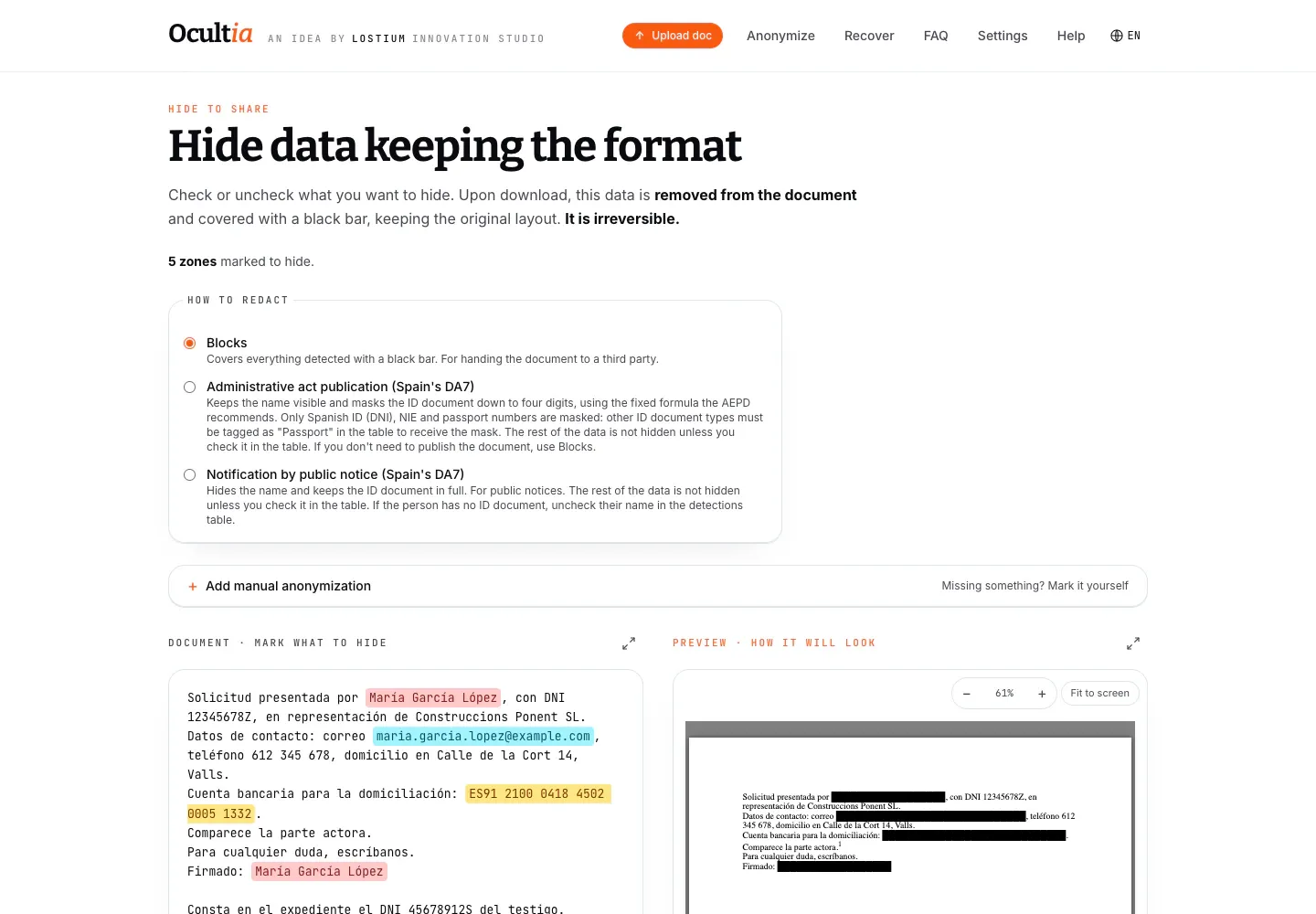
In Word, compare the highlighted text with the preview of the copy.
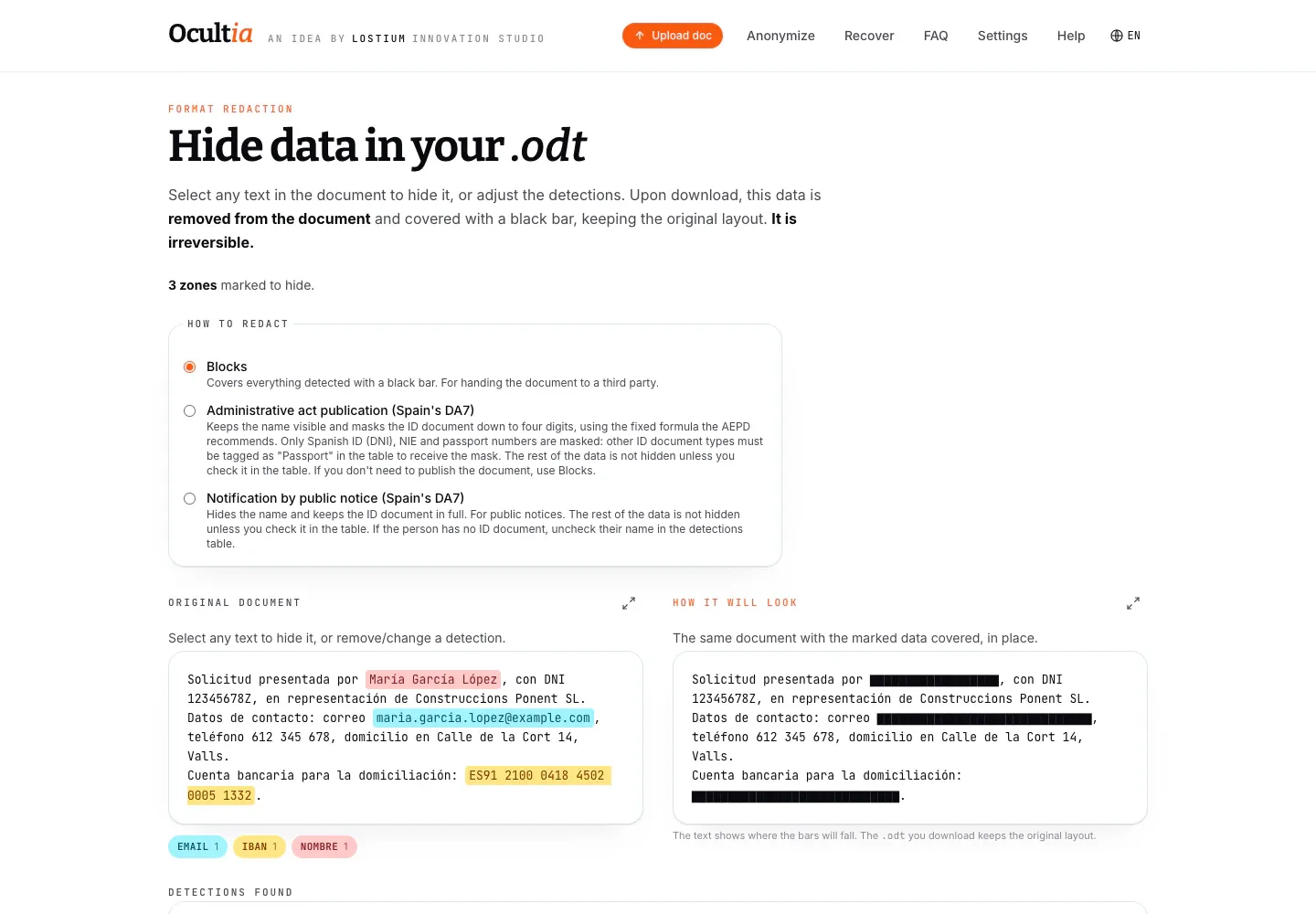
In LibreOffice, check that the preview hides the items you marked.
-
Check every page, including images, tables, headers and footers. A scanned PDF without a text layer will have no automatic detections in this workflow. Check the viewer and mark areas manually. In the detections list, open Type to correct an item’s category.
-
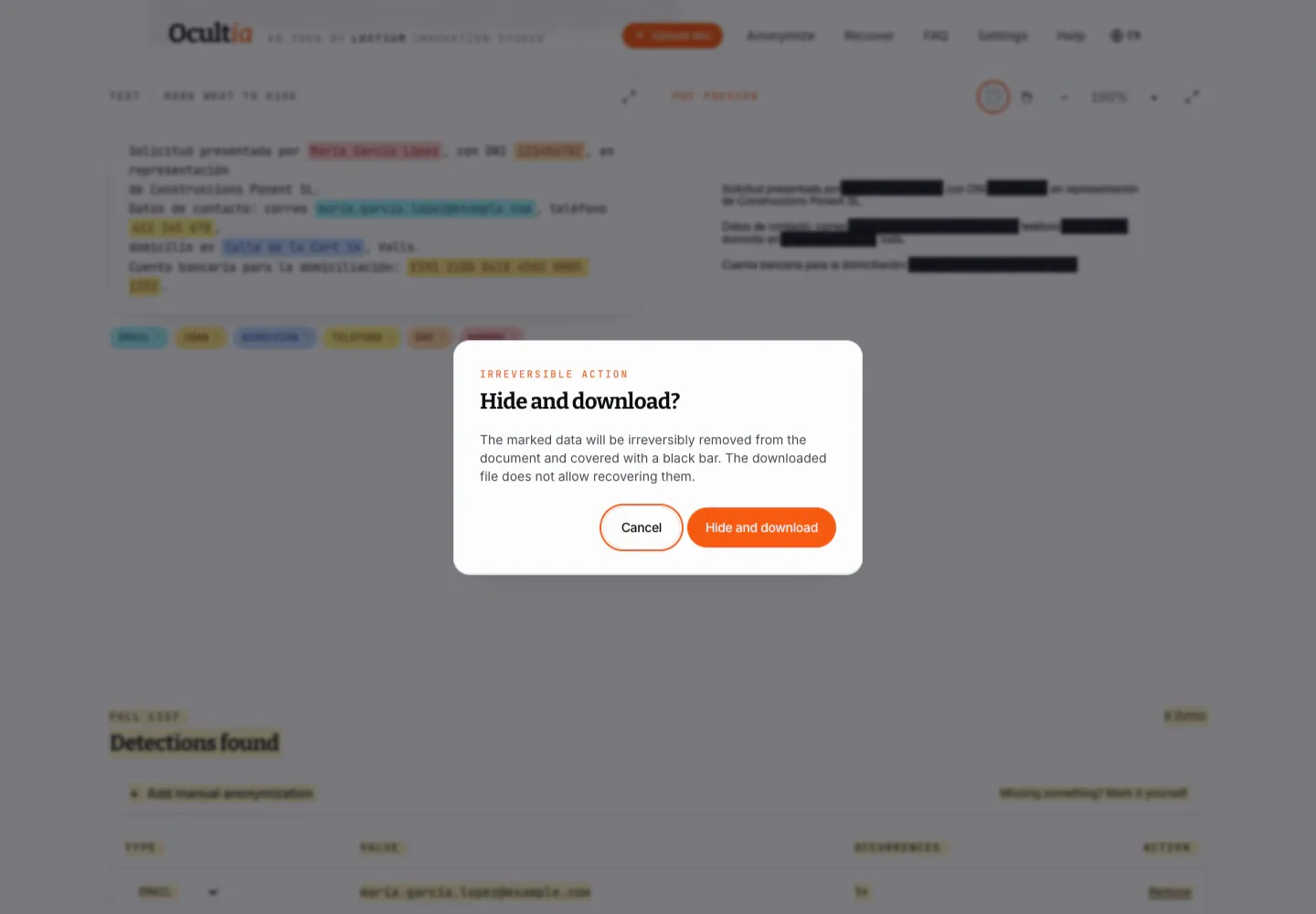
Export and confirm, then open the downloaded copy to check it. Keep the original separately. Redaction in the exported copy is irreversible.
Administrative publication modes
Section titled “Administrative publication modes”If the app offers the DA7 modes, Publication of an administrative act leaves the name visible and masks part of the identifier. Notification by public notice redacts the name and leaves the full identifier visible. Check which other fields remain visible and use the mode specified by your organization. The block redaction mode covers the matches you have marked.