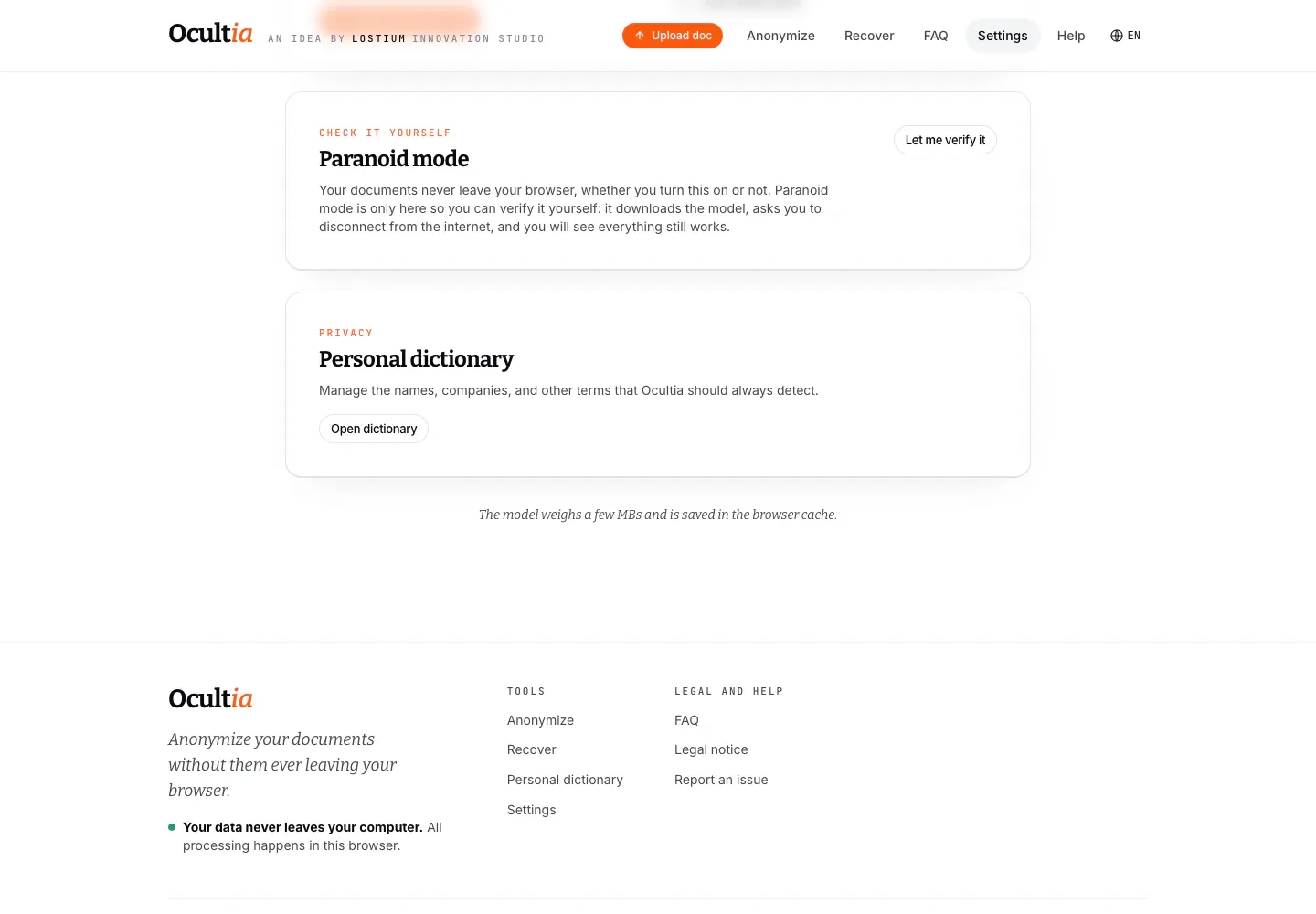
Settings and detection engines
Open Settings to change the interface, advanced mode and the detection engine. Focused mode reduces navigation elements. If you saved a choice in the anonymization dialog, you can show the dialog again from the upload area.
Under Theme, press Light or Dark to change how Ocultia looks immediately. Automatic follows your system theme. Ocultia saves your choice in this browser.
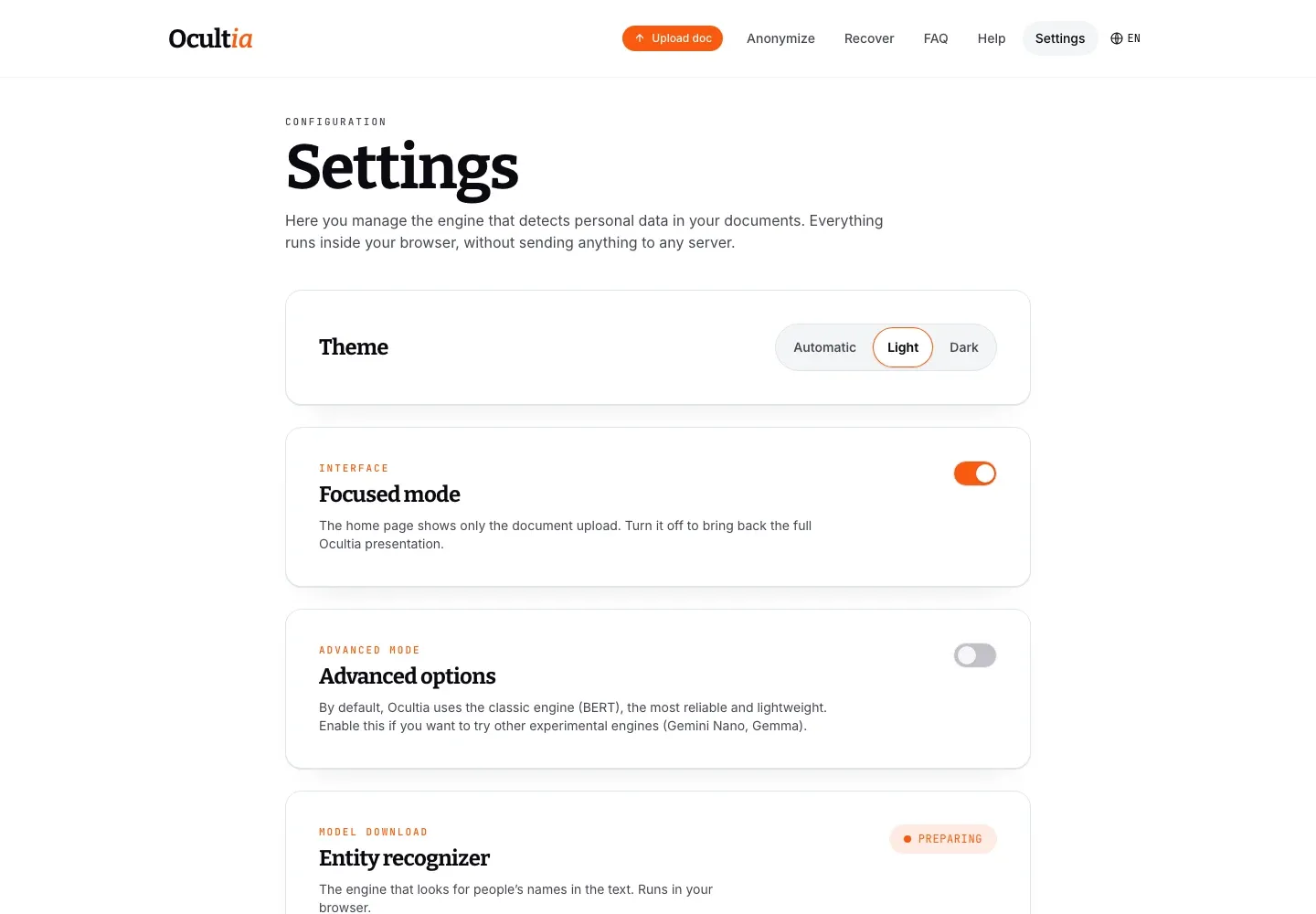
Classic is the recommended engine for names. Detectors for structured data such as ID numbers, IBANs and email addresses remain active when you switch engines.
If you use Gemma, open model size to view and choose from the available sizes.
When the option is available, you can also prepare or clear the model cache. If an update notice appears while you are working, export anything you need before reloading.
When Focused mode is active, Paranoid mode prepares the model and guides you through a test of offline processing. Use a sample document and keep the tab open.