Anonymize text for use with AI
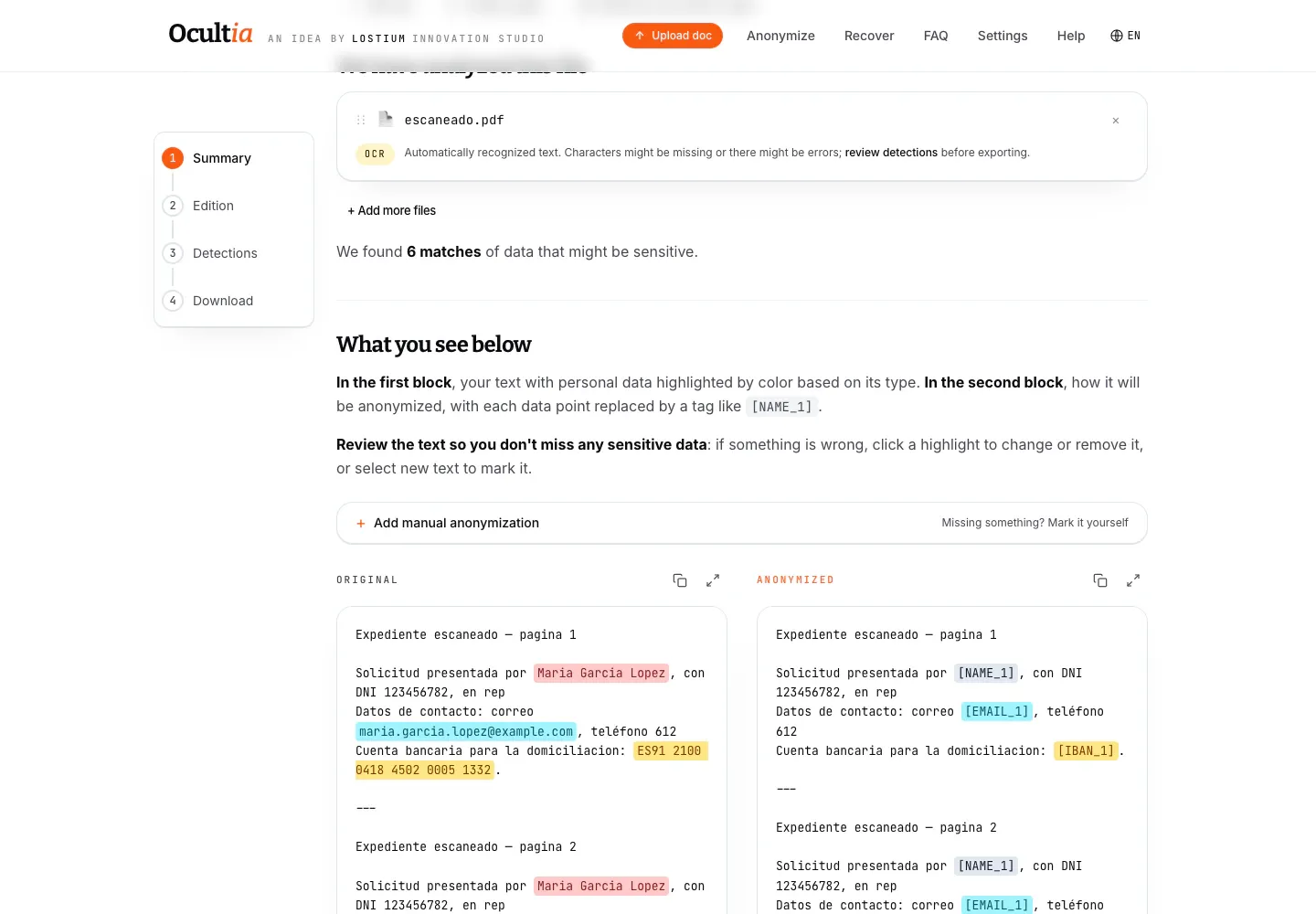
Use this workflow to copy or download text with aliases. The output preserves the basic text structure and can be exported as Markdown.
-
Paste text on the home page or upload
.txt,.md,.pdf,.docx, or.odtfiles. You can combine up to five inputs per session, including pasted text. -
Select Anonymize document and choose For use with AI. With multiple documents, the same match can share a label across the set.
-
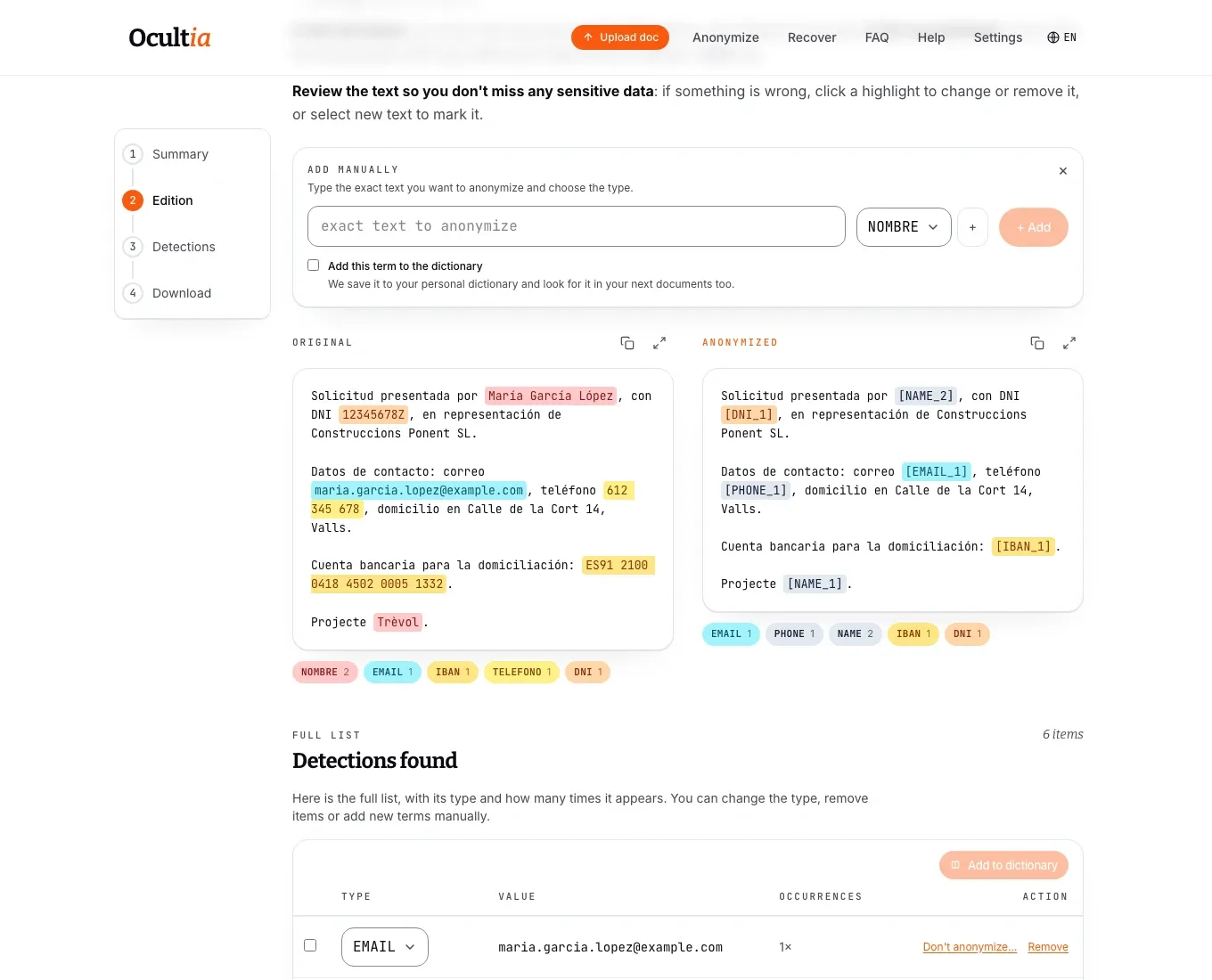
In the review, select a highlight to correct or exclude it. To add a missed item, select the text or use the manual anonymization panel. Check the original and the output. To change Type, open the dropdown, use the arrow keys and press Enter to confirm. Escape closes it and keeps the current type.
-
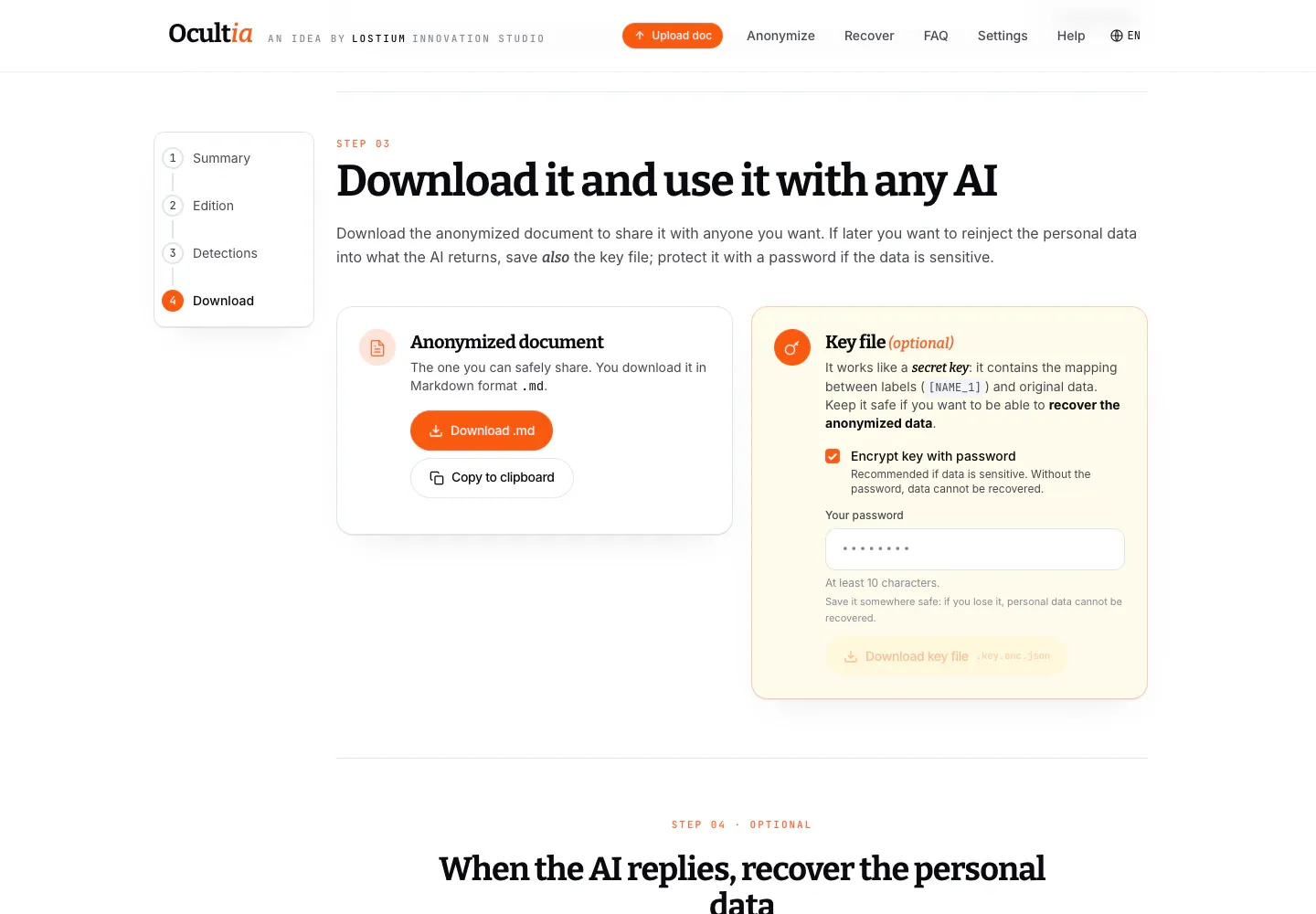
Copy the output or download it as Markdown. If you plan to restore the original data, also download the key file and store it separately, preferably encrypted.
If a scanned PDF has no text layer, Ocultia attempts to recognize the text through OCR in your browser. Check names, numbers and reading order closely. Complex documents can lose some structure, and images in Word or LibreOffice files are omitted from the exported text.